Pooled VRAM
32 GB
GPUs
2 × 16 GB
PCIe Lanes
x8 / x8
Driver / CUDA
580 / 13.0
01 — The Build
Components
Built around the X570 Taichi specifically for its triple reinforced PCIe x16 slots and proper CPU lane bifurcation. The 5600X is overkill for inference (Ollama doesn't touch the CPU during generation), but it was on hand and feeds the GPUs without bottlenecking PCIe 4.0.
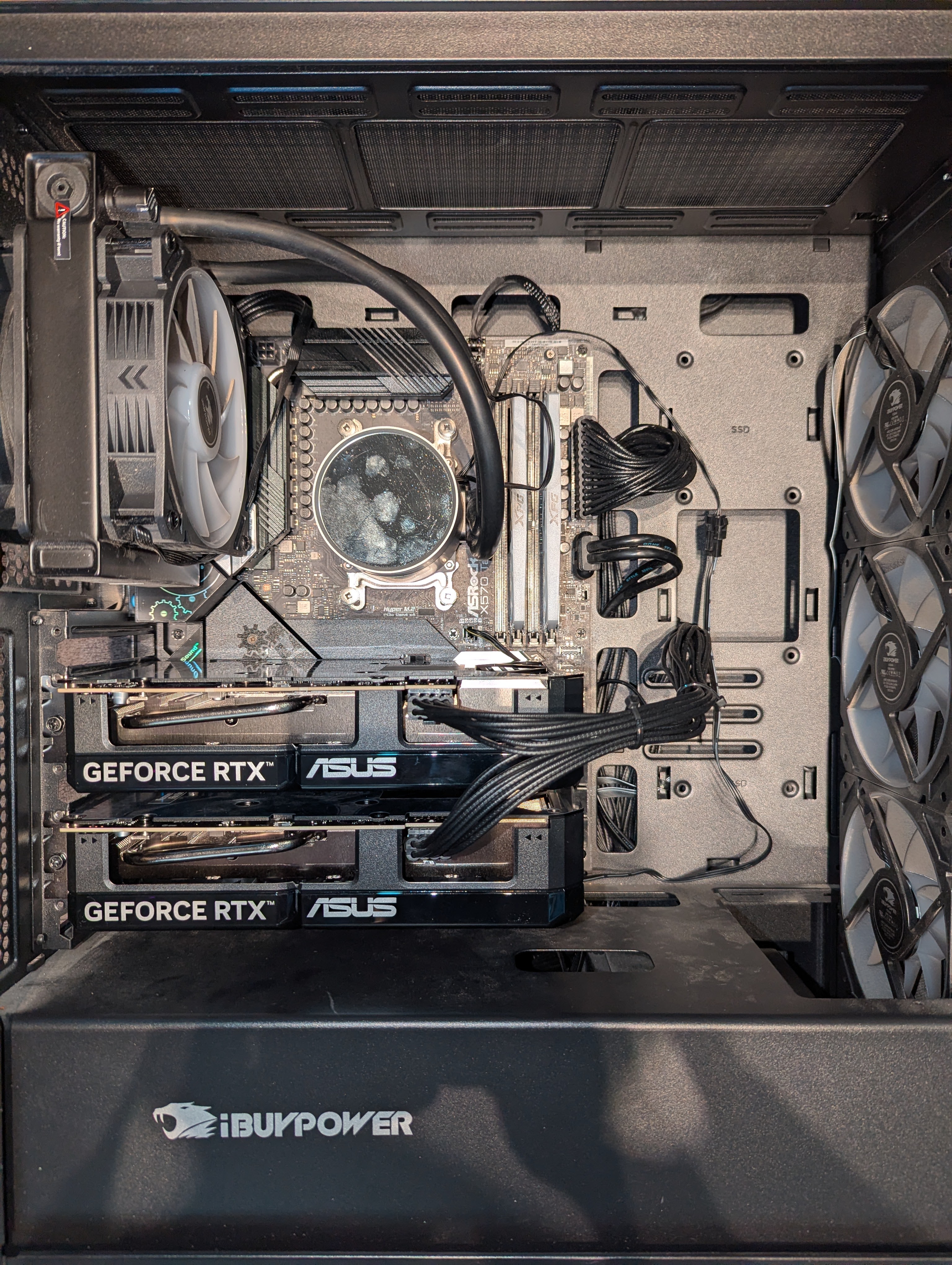 your-llm-host · both ASUS DUAL-RTX5060TI-O16G-I3S cards seated in PCIE1 / PCIE2 · X570 Taichi · iBUYPOWER chassis
Motherboard
ASRock X570 Taichi
AM4 ATX, 3 reinforced PCIe x16 slots with CPU x8/x8 bifurcation, BIOS 5.60
CPU
AMD Ryzen 5 5600X
6 cores / 12 threads · Zen 3 · carries the OS and PCIe root complex
Memory
32 GB DDR4-2133
2 × 16 GB · system RAM only · inference lives on the GPUs
GPU 0 & GPU 1
2 × ASUS DUAL-RTX5060TI-O16G-I3S
Blackwell sm_120 · 16 GB GDDR7 each · 180 W TDP · single 8-pin per card
Storage
954 GB NVMe (LVM)
Boot + model store · full volume group allocated to ubuntu-lv
Operating System
Ubuntu Server 24.04 LTS
NVIDIA driver 580.142 OPEN · CUDA 13.0 · Ollama latest
02 — Physical Layout
PCIe Slot Placement
The X570 Taichi has three reinforced x16 slots. Only two of them route to the CPU — the third is chipset-routed at x4 and shares bandwidth with NVMe and SATA. Both GPUs go in PCIE1 and PCIE2 to get a clean CPU-direct x8/x8 bifurcation at PCIe 4.0.
PCIE1Top
GPU 0 RTX 5060 Ti · bus 0C:00.0
CPU · x8 · Gen4
PCIE2Middle
GPU 1 RTX 5060 Ti · bus 0D:00.0
CPU · x8 · Gen4
PCIE3Bottom
unused — chipset-routed, shares bandwidth with NVMe
Chipset · x4 · avoid
Spacing note: The DUAL-RTX5060TI is a 2.5-slot card. With a 3-slot gap between PCIE1 and PCIE2, that leaves roughly half a slot of breathing room between cards. Tight, but workable with front-intake fans pushing air directly into them. Each card runs from a separate PSU cable — no daisy-chaining.
03 — BIOS Flash
Going From 3.40 to 5.60
The board shipped with firmware 3.40, which doesn't function for 50-series cards — the PCI Configuration menu isn't exposed and the Resizable BAR path required for Blackwell GPUs isn't available. Firmware 5.60 unlocks both. It's a two-stage process — prep a USB stick on a working Linux box, then run Instant Flash on your-llm-host.
Firmware 5.60 · What it unlocks
Required surface area for dual Blackwell GPUs
· PCI Configuration submenu under Advanced
· Above 4G Decoding toggle
· Re-Size BAR Support toggle
· Full 16 GB BAR1 aperture allocation per GPU
Stage 1 — Prep the USB on another Linux box
Pulled X570TC5.60 from the ASRock support page on your-gpu-host. The stick had old files and a flaky partition table from a previous ASUS flash, so wiped it clean and rebuilt the partition table from scratch — ASRock's Instant Flash filters by board signature, but starting clean removes any ambiguity.
user@your-gpu-host:~$ — USB stick prep
# Unmount any existing auto-mount
sudo umount /media/youruser/FLASHDRIVE

# Wipe all filesystem signatures so we start clean
sudo wipefs -a /dev/sda

# Fresh DOS partition table + single FAT32 partition
sudo parted /dev/sda --script mklabel msdos mkpart primary fat32 1MiB 100%

# Format as FAT32 with a clear label
sudo mkfs.vfat -F 32 -n BIOSFLASH /dev/sda1

# Mount, copy the BIOS, sync, unmount
sudo mkdir -p /mnt/usb
sudo mount /dev/sda1 /mnt/usb
sudo cp X570TC5.60 /mnt/usb/
sync
sudo umount /mnt/usbStage 2 — Run Instant Flash on your-llm-host
Plugged the prepped USB into a rear USB 3.0 port on your-llm-host, booted, hit DEL during POST. ASRock's Instant Flash auto-scans every connected USB device and lists only firmware files that match the board signature — so even though there were stragglers from previous flashes on other sticks, only X570TC5.60 showed up as selectable.
01
Insert USB stick & Power on → hit DEL at POST
Use a rear USB 3.0 port for the most reliable detection
Boot
02
Tool → Instant Flash
Auto-scans all connected USB devices for matching firmware
Launch
03
Select X570TC5.60 from the list
Only board-signature-matched files appear — no risk of cross-flashing
Select
04
Confirm flash → Wait for completion
Roughly 90 seconds — do not power off mid-flash under any circumstance
Run
05
Auto-reboot → verify firmware version on Main tab
Should report 5.60 — the PCI Configuration submenu is now available under Advanced
Verify
04 — BIOS Configuration
Five Settings After the Flash
With firmware 5.60 in place, walk these five toggles in this exact order. The PCI Configuration menu in step 3 only appears after CSM is disabled and saved — and CSM only appears after Fast Boot is off. Order matters.
01
Boot → Fast Boot
Disabling Fast Boot exposes the CSM submenu
Disabled
02
Boot → CSM
Pure UEFI — required before ReBAR will function and before the PCI Configuration menu appears
Disabled
03
Advanced → PCI Configuration → Above 4G Decoding
Lets the BIOS map GPU memory regions above the 4 GB barrier
Enabled
04
Advanced → PCI Configuration → Re-Size BAR Support
Only selectable after Above 4G Decoding is enabled
Enabled
05
Security → Secure Boot
Unsigned NVIDIA modules won't load otherwise
Disabled
05 — Ollama
Pooling Both Cards Into One Compute Target
By default Ollama loads a model entirely onto a single GPU if it fits in VRAM, and never touches the second card. To run models that need more than 16 GB — like Qwen3 32B at Q4 (~22 GB) — layer-spread has to be turned on explicitly via a systemd override.
/etc/systemd/system/ollama.service.d/override.conf
# Pool both 5060 Tis into a single ~32 GB compute target
[Service]
Environment="OLLAMA_HOST=0.0.0.0:11434"
Environment="OLLAMA_SCHED_SPREAD=1"
Environment="OLLAMA_KEEP_ALIVE=30m"
Environment="OLLAMA_FLASH_ATTENTION=1"
OLLAMA_SCHED_SPREAD
= 1
The critical one. Distributes model layers evenly across both GPUs so a 22 GB model fills ~11 GB on each card — lets the pool act as a single 32 GB compute target instead of two isolated 16 GB cards.
OLLAMA_KEEP_ALIVE
= 30m
Holds models hot in VRAM for half an hour after last use instead of unloading after the default 5 minutes. Eliminates cold-start latency for repeated queries.
OLLAMA_FLASH_ATTENTION
= 1
Enables Flash Attention kernels for materially faster inference. Fully supported on Blackwell — no reason to leave it off on these cards.
OLLAMA_HOST
= 0.0.0.0:11434
Listens on every interface so any Tailscale node in the lab can hit it. UFW rules clamp inbound to the Tailscale subnet, so it stays private.
06 — Win Condition
Both Cards Online
With BIOS 5.60 in place, all five toggles set, and the open-kernel NVIDIA driver loaded, this is what nvidia-smi looks like on a clean boot. Two GPUs, 16311 MiB each, idling at single-digit watts under driver 580.142.
user@your-llm-host:~$ nvidia-smi
+-----------------------------------------------------------------------------------------+
| NVIDIA-SMI 580.142                Driver Version: 580.142        CUDA Version: 13.0     |
+-----------------------------------------+------------------------+----------------------+
| GPU  Name                 Persistence-M | Bus-Id          Disp.A | Volatile Uncorr. ECC |
| Fan  Temp   Perf          Pwr:Usage/Cap |           Memory-Usage | GPU-Util  Compute M. |
+=========================================+========================+======================+
|   0  NVIDIA GeForce RTX 5060 Ti     Off |   00000000:0C:00.0 Off |                  N/A |
|  0%   43C    P8              4W /  180W |       2MiB / 16311MiB |      0%      Default |
+-----------------------------------------+------------------------+----------------------+
|   1  NVIDIA GeForce RTX 5060 Ti     Off |   00000000:0D:00.0 Off |                  N/A |
|  0%   41C    P8              2W /  180W |       2MiB / 16311MiB |      0%      Default |
+-----------------------------------------+------------------------+----------------------+